 Tallyseed
How it works
From planning today
to seeing your week.
Tallyseed does only a few things, and each one is carefully thought through. Here’s how every part works, in the order of a day.
01
Plan today
Take a minute in the morning to put what matters into today.
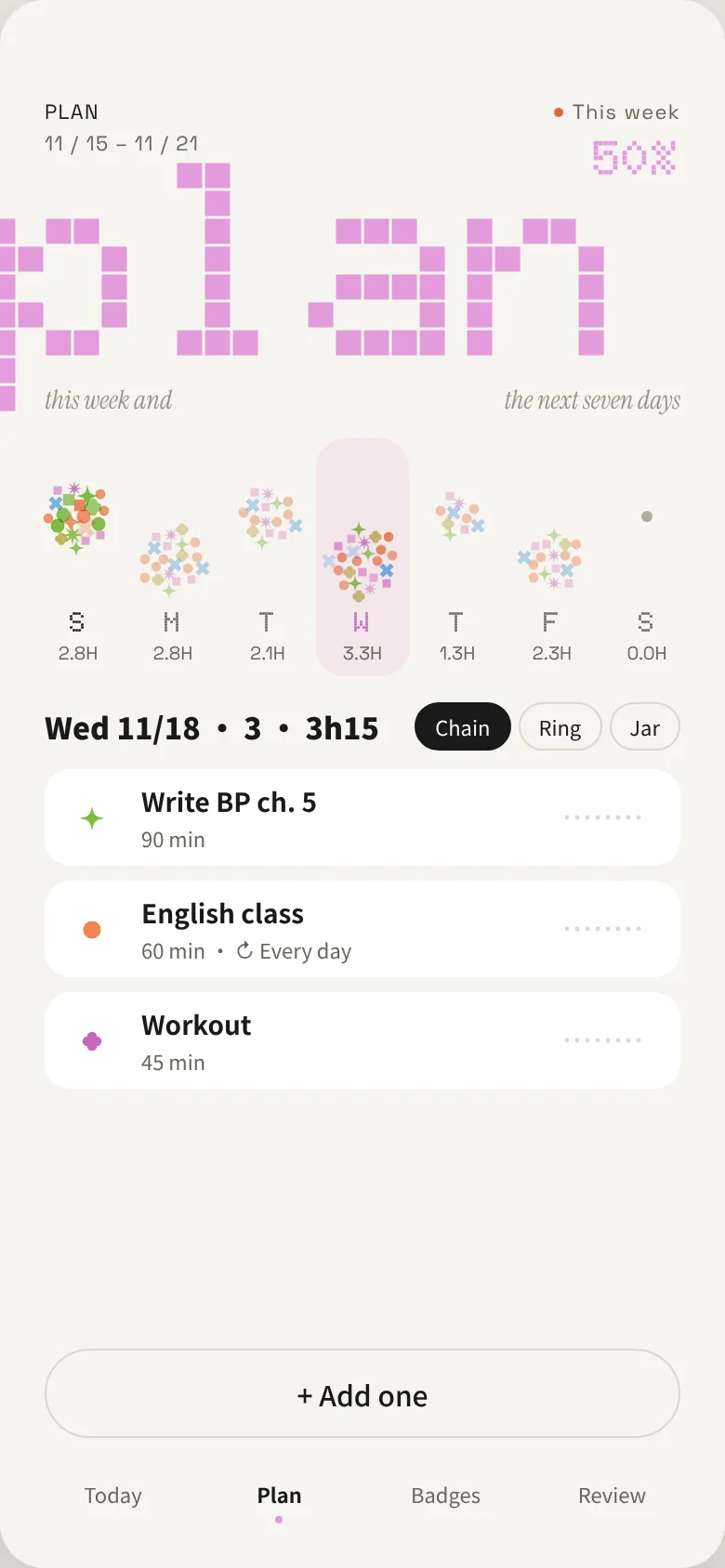
- Tap “+ Add something” and write what you want to do.
- Set the minutes with the big number. Each dot is 5 minutes.
- Pick a category; it becomes the shape on your list. You can also make it repeat.
- Drag to reorder. Put what matters most at the top.
- Not sure how to plan? Tap “Plan my day” for a draft based on your usual habits, then adjust it. Suggestions are calculated on your device.
02
One thing at a time
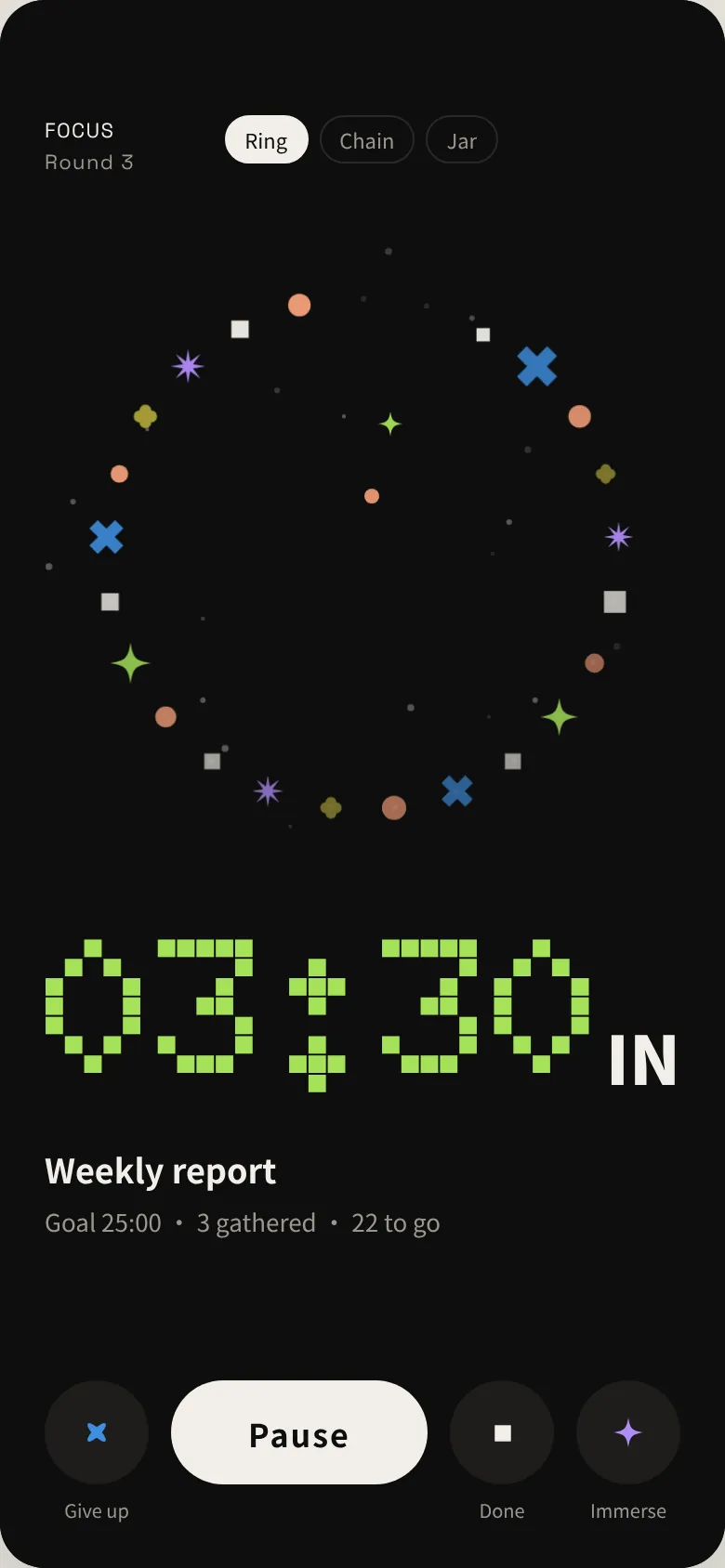
The timer counts up from 00:00, so you always see how far you’ve come.
- Press ▶ on your list to start. Every minute, one mark flies from the ring into the center.
- Choose from three timer styles in Settings: ring, chain or jar.
- Pause when you need to step away, or enter Immerse mode to leave only the time on screen.
- When time’s up it doesn’t mark it done for you. It asks: done, extend the goal (5–30 minutes), or keep going with no end (up to 60 more minutes).
03
Take a break
After a session, give yourself a little space.
- Start a break and the screen slowly grows and shrinks with your breath: in for 4 seconds, out for 4.
- When the break ends, it gently lets you know and tells you what’s next.
04
On Mac, in the corner
Your timer stays with you while you do other things.
- Shrink the timer into a floating window and drag it anywhere on screen.
- Tuck it into the edge so only a sliver of time shows; click to expand.
- Drag the bottom-right corner to resize, and the layout rearranges itself.
- The current time also shows in the menu bar.

05
See where the time went
Every minute leaves a dot.
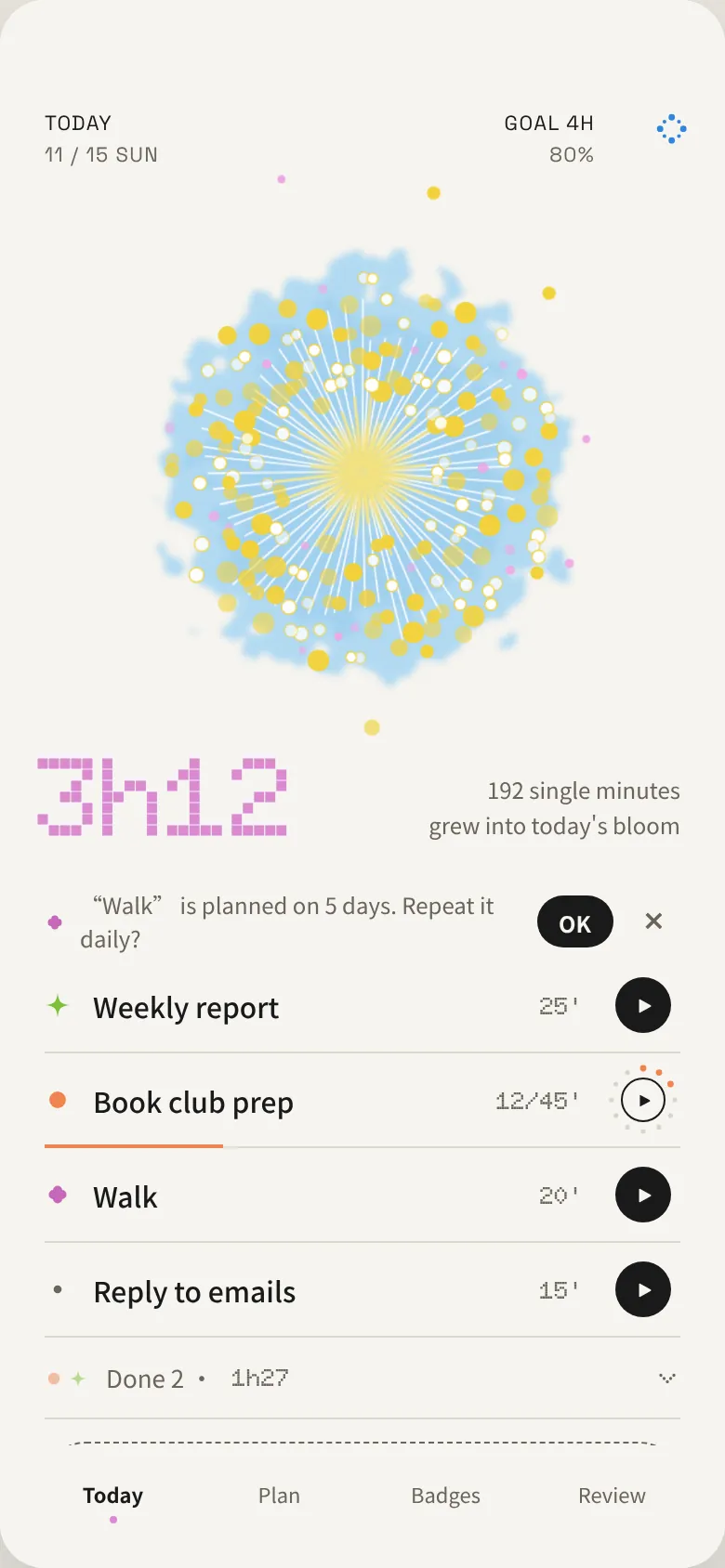
- Each seed of the dandelion on your Today screen is one minute you focused today.
- Every day in the calendar has its own little cluster of light. Open it to see what you did.
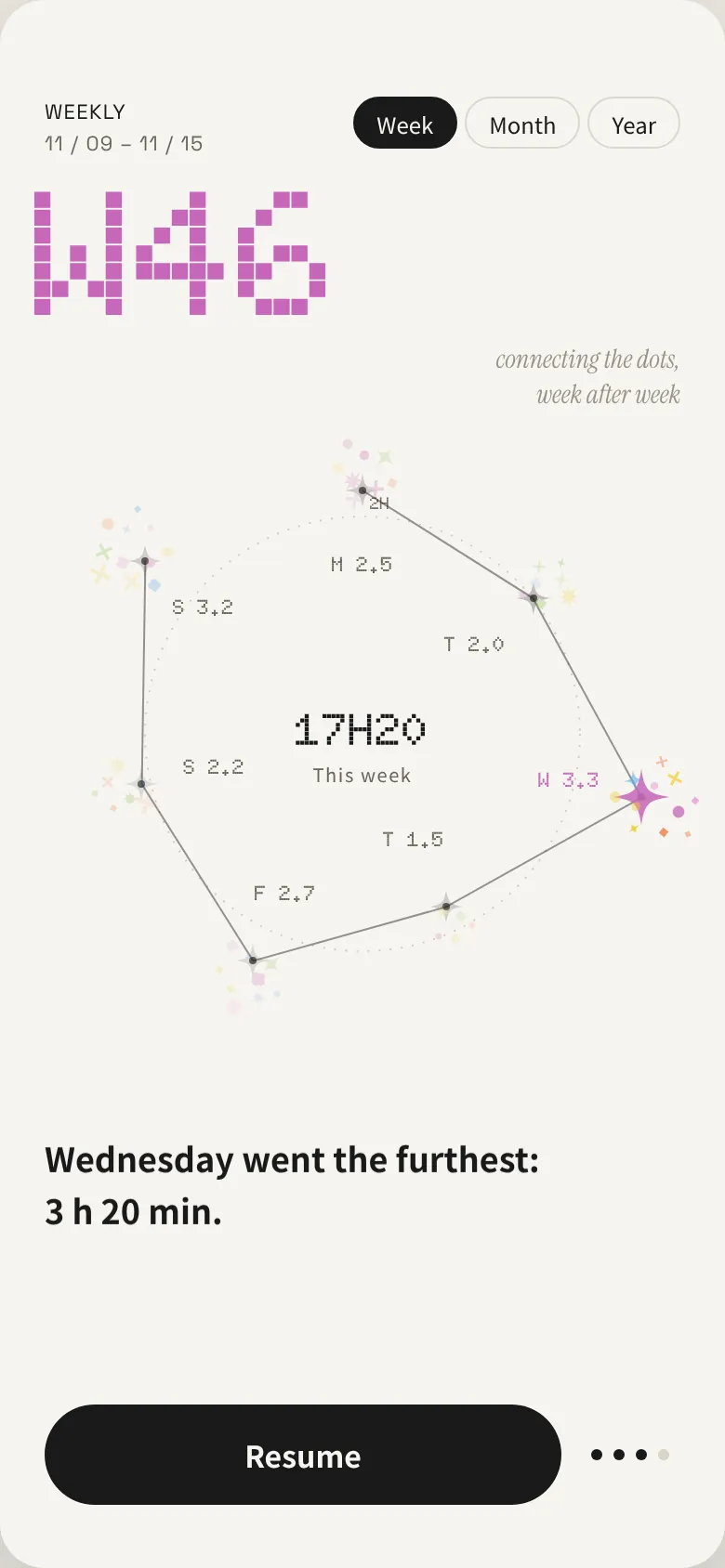
- Every Monday brings a weekly review that turns your seven days into one line. Monthly and yearly reviews can be saved as images to share.
06
Sync and your data
Switch devices, and today is still there.
- Sign in with an email code. No password needed.
- Sign in with the same account and every device shows the same tasks and history. It works offline and catches up when you’re back online.
- In Settings › Account & Sync you can export or import your data, or delete your account.